30 August 2010 - 15:31Synchronous and Asynchronous APIs

In designing the Firefox-facing APIs of Account Manager, thunder [sandmill.org] and I decided to make most of the interfaces take a callback/continuation. Two main reasons were 1) to allow add-ons to add extra account types like OpenID and 2) to find out if you’re logged-in to a site over multiple network requests.

For an add-on to provide a new account type, it needs to be able to tell Firefox what saved accounts are available and how to connect to them. These might need to read data from disk and/or network; or perhaps request more information from the user like a 1-time code sent over SMS. For Firefox to support these more-complex interactions, it can’t assume that a method implemented by the add-on can return a value immediately.

Asking for additional information to connect to a banking site

In this particular mockup, the site has told Firefox not to use the basic username-password account type but instead to use an account type that asks for more information. Here, an add-on has already saved the username/password and doesn’t to ask for them, but it can’t immediately connect without asking for more information, so it tells Firefox to show this popup. With the async. API, the add-on can later tell Firefox that it has finished the connect process.

The second reason for going async. overlaps with the first of supporting add-ons; Account Manager and account types need to talk over the network to other machines. These requests can take more than just a few milliseconds, so blocking the rest of Firefox when you click on the “Sign in” button using a synchronous request would be bad. In the case of finding the account status, Firefox might need to make requests for any or all of host-meta, AMCD and the session status.

The Password Manager API in Firefox happens to be synchronous—as are many other interfaces in Firefox. Converting it to be asynchronous for use in the username/password account type was fairly simple, but there’s a couple things to keep in mind: when the work is done and when the result is given.

Implementing the async. interface with the synchronous Password Manager

Here, we’ve made the call to savedAccounts immediately do the work of finding the logins, so this means the caller might have to wait before the asynchronous savedAccounts call returns. We could have just as easily delayed this work to run after the function returns by moving the logic into the async function call, but one needs to be aware that if the arguments are live objects, the contents might change by the time async triggers the callback.

The second point of “when the result is given” is less flexible. The function above could have been written to just call onComplete(accounts) immediately without the async wrapper, but that could break the caller as the implementation is no longer truly asynchronous. The caller would stop working if code is supposed to execute after the call to savedAccounts but before the call to continuation, onComplete.

Trivial example of how non-async. implementations could break

For web developers, implementing async is pretty simple as the global window object has setTimeout. So one implementation could look like function async(callback) setTimeout(callback, 0);

Making the choice of having the APIs be asynchronous does have some drawbacks in terms of code structure. Any function that eventually calls an async. function will be forced to take a callback as well, and if it needs to call multiple async. functions, the logic needs to be broken up into multiple callbacks. If you want to share variables across these callbacks, you’ll end up creating many nested anonymous functions (closures).

Additionally, some simple things like doing Array.reduce (fold), which visits each array item and applies a function to produce a single result, can get pretty complicated if you want to pass in an async. function. In a later post, I’ll describe a way to have asynchronous functions look like they’re synchronous so that you can avoid some of this callback craziness. ;)

No Comments | Tags: Account Manager, Add-on, Development, Labs, Mozilla

5 March 2009 - 17:53About:Tab (New Tab Page From Mozilla Labs)

Mozilla Labs has a new prototype for you to try out — About:Tab [people.mozilla.com]. (Make sure you’re running Firefox 3.1 [mozilla.com] or newer!)

With this add-on, you get a listing of sites you frequently visit with thumbnails and feed items instead of a blank white page on opening a new tab. These sites are shown along the far-right edge of the page to avoid interrupting your behavior if you just want to type in the site you want to go to.

You don’t need to manually bookmark sites or pick pages or even subscribe to feeds! The new tab page is smart enough to figure out which sites you frequently go to and shows related items like feeds.

Easily access your frequently visited sites along with their feed items

Easily access your frequently visited sites along with their feed items

The sites are listed along the right edge of the page to be visible but not glaring. That’s why the thumbnails are shown in gray so that flashy sites don’t overpower the simple look. Both the thumbnail and text are faded gray until you put your mouse pointer over it to interact with it.

The page additionally will provide navigation options based on your behavior. If you’ve copied an address to map, you’ll be able easily get to the map by clicking on a link from the new tab page. Additionally, if you’ve recently closed a tab and want to get back to it, you can restore it with a single click.

Behavior-based navigation suggests actions that you'll likely want

Behavior-based navigation suggests actions that you'll likely want

Check out the official Mozilla Labs post describing the ideas behind the New Tab Page [labs.mozilla.com]. As pointed out there, the main themes behind the new tab page were were No Configuration, Streamlined, and Polite. Thanks everyone for the early feedback, and please continue to provide comments, criticisms, and suggestions [labs.mozilla.com].

This is an early prototype that Dan Mills initially started coding less than a week ago, but it’s pretty functional already as it has drawn from existing projects like Atul Varma’s Ambient News [toolness.com] and my Auto Dial. You can follow the development of this prototype [wiki.mozilla.org] to see what’s going on or even contribute.

For those using my Auto Dial add-on, you can easily uninstall it and update to About:Tab [people.mozilla.com] from Tools -> Add-ons. About:Tab provides more functionality with behavior-based navigation and feed items as well as a cleaner interface with thumbnails. :)

49 Comments | Tags: Add-on, Labs, Mozilla, New Tab

18 February 2009 - 9:47Going Places: All the Different Ways

If you use Firefox 3, how do you get to the site you want?

How would you go to a website from this screen?

How would you go to a website from this screen?

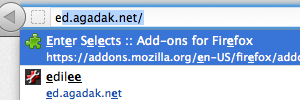
Hopefully if you’ve been using Firefox for a while, you’ve found out that it is smart enough to show the site you want after typing just a single letter in the location bar. Firefox remembers which sites you go to frequently and what you’ve typed before, so it can better suggest the page you want — one reason why people say it’s so awesome. And if you’ve installed Enter Selects [addons.mozilla.org], you can just hit [enter] to go to the first result.

There’s 3 or 4 steps involved here:

  1. Getting to the location bar (click it or use the keyboard shortcut)
  2. Typing what you want (a single letter or more)
  3. Finding the result from the list (optional presses of [down] or [tab])
  4. Selecting the page (hit [enter] or click)

There are plenty more ways to get to the page you want:

  • Click the search icon in the top-right box and then search — ~6 steps
  • Search from the default home page — ~5 steps
  • Search from the top-right search box — ~5 steps
  • Search from bookmarks sidebar — ~4 steps *
  • Open from a new tab (with a smart new tab page) — ~3 steps
  • Select from the smart bookmarks drop-down — ~2 steps
  • Select a page from the location bar drop-down — ~2 steps
  • Open from bookmarks sidebar — ~1 step *
  • Click a bookmark from bookmarks toolbar — ~1 step *

I put a * next to the ones using bookmarks as you have to first bookmark a site and organize it into folders or put them onto the toolbar. So there’s some initial cost for setting them up, but it can pay off in the long run — just a single step to get to the site in the common case.

There are many ways to get to a site with varying number of steps

There are many ways to get to a site with varying number of steps

It’s not bad that there are many different ways to get at the same goal. Each way has its own benefits and drawbacks. For example, going to a bookmark is very simple (assuming it’s visible and clickable), but you need to have bookmarked a page beforehand, and going to a new site from a bookmark could be tricky. Additionally, you need to sacrifice screen space for the sidebar or the toolbar.

The main metric I’m looking at for these different ways is the number of user actions required to get back to a site. Just think about how many times you go to the same site over and over again. You might go to a number of sites frequently and others not as frequently, but you still revisit them more than a random site you’ve never heard of.

And don’t forget that others might have more difficulty than you when using a mouse or keyboard. Even if you only need to type a single letter to find the site you want, finding the right one key to press on the keyboard can be an ordeal in itself.

So ideally we make this common behavior very easy to do. At most one click is needed as we’ve seen with bookmarks. But bookmarks are “difficult” to work with as it requires extra effort from the user.

The idea behind EdBrowser’s Site Launcher comes from this goal of streamlining the interface to allow the user do what s/he wants — interact with the site – not the browser.

Get to where you want to be with a single click

Get to where you want to be with a single click

Instead of having to manually bookmark sites and organize them to be accessible, the Site Launcher automatically figures out which pages you’ve been going to frequently — you kept typing them in over and over again. You can even drag the current site from the “temporary” right side and pin it somewhere on the left because you want to go back to it.

As you get more and more sites on the Site Launcher, there’s less and less need to type in the site you want. This means all that space currently used for some text input like the location bar isn’t as necessary any more.

But just because this text input gets smaller doesn’t mean you can’t type-to-get-to-the-site. In fact, having sites on the Site Launcher can streamline the keyboard interface even more. Searching from that input box can first prefer pages contained in the Site Launcher. This includes your open tabs, main pages of the websites, as well as pages you frequently visit; it would even include recently closed tabs.

7 Comments | Tags: Add-on, EdBrowser, Mozilla

4 February 2009 - 7:21Panic Mode: Really! I Just Opened Firefox

You probably already know about the new Private Browsing Mode [support.mozilla.com] in Firefox 3.1, but did you know about the other “P” Mode? Panic Mode!

Well, maybe not as it’s a brand new add-on I’ve written that shows your home page instead of about:privatebrowsing when starting Private Browsing Mode. That’s all! Very simple. :)

Panic Mode works just like Private Browsing except it shows your home page

Panic Mode works just like Private Browsing except it shows your home page

Now when your boss is walking over and you’ve got a bunch of tabs for online social networks, chatting and personal mail; just hit the shortcut for Private Browsing (Ctrl/Cmd-Shift-P), and woosh! those tabs disappear and now it looks like you’ve been busy working! Saved by Panic Mode! :P

Just remember that you’re now in Private Browsing, so if you hit the shortcut again, it’ll bring back the tabs you had opened. (Don’t mix up those modes! Could be dangerous if you restored those tabs as your boss is looking over your work!)

Oh, and any kind of home page works. So if you’ve set a bookmark folder to be your home page, it’ll load all those tabs when going into Panic Mode.

Try out Panic Mode Add-on [addons.mozilla.org] today! :)

3 Comments | Tags: Add-on, Mozilla